
Yours to keep
Everything you've entered exports to a file you keep yourself, in a documented format you can read without the app. It also syncs between your devices through your own Dropbox or OneDrive.
Export the lot
The bundle is a single JSON file containing every record: trees, tree groups, pots, species, care guides, diary entries, jobs, soil mixes, fertilisers and pest treatments, custom field definitions, trunk measurements, photo captions and tags, and the collection itself. It's plain text, and the format is documented, so you can read it without this app.
Photographs and video come out as a zip archive, carrying the media alongside the records. Archives stream in both directions, can be cancelled part way through, and can be incremental, so a photo backup builds on the previous one instead of writing every image again.
Backup & Sync puts first the one backup your setup calls for. Without cloud sync, that's the full archive. With sync on, your collection is already in the cloud, so it offers a single Also Save a File for a copy you keep yourself. The records-only bundle and, on the desktop, the database snapshot sit under Other backup types.
- Records
- One JSON bundle, in a documented format
- Records and media
- A zip archive, full or incremental
- Cancellable
- Yes, and a cancelled run deletes its partial file
- Import
- Merges into the collection you have; it does not wipe and replace
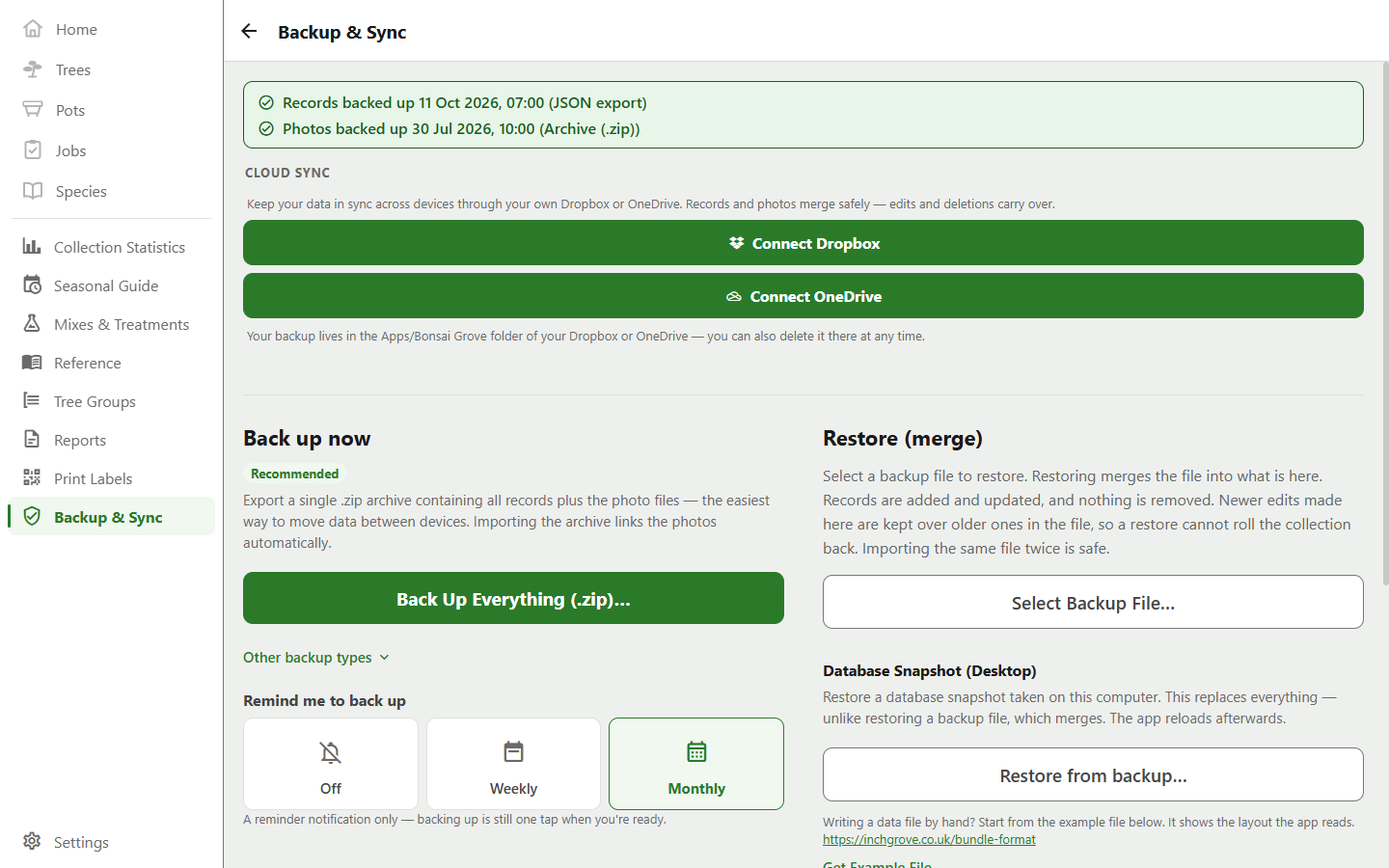
Importing merges records
Importing a bundle merges it record by record. Where the same record exists on both sides the newer edit wins, and where it exists on only one side it gets added. Deletions carry across too, so a tree you removed on the phone doesn't walk back in from an older backup on the desktop. Two bundles from two devices can be imported in either order and give the same result.
It also holds when your devices aren't on the same version. A bundle from a newer build can carry records this build has no screen for yet. The older build keeps them exactly as they arrived and hands them back on its next export.
Sync between your devices
Cloud sync uses your own Dropbox or OneDrive. The app pulls what's there, merges it exactly as an import would, and pushes the result back. As it writes, it checks that nothing changed underneath it, so two devices syncing at once can't overwrite each other. Photo files are reconciled by difference, so only what's missing moves.
It goes to your account, not to the developer, who has no access to any of it. Everything sits in an “Apps/Bonsai Grove” folder, where you can see it and delete it yourself. Disconnecting and deleting the cloud copy are separate actions, and neither touches the collection on your device.
- Providers
- Dropbox, or OneDrive on a personal Microsoft account
- Where it lives
- The “Apps/Bonsai Grove” folder; the app can't see the rest of your storage
- Sign-in
- Through the provider's own page; the app never sees your password
OneDrive works with a personal Microsoft account, not yet a work or school one. Those organisations commonly stop their users granting access to outside apps.
Labels and reports print from the desktop app, so a collection kept on the phone needs sync to reach it, or an exported bundle carried across by hand if you'd rather not connect anything.
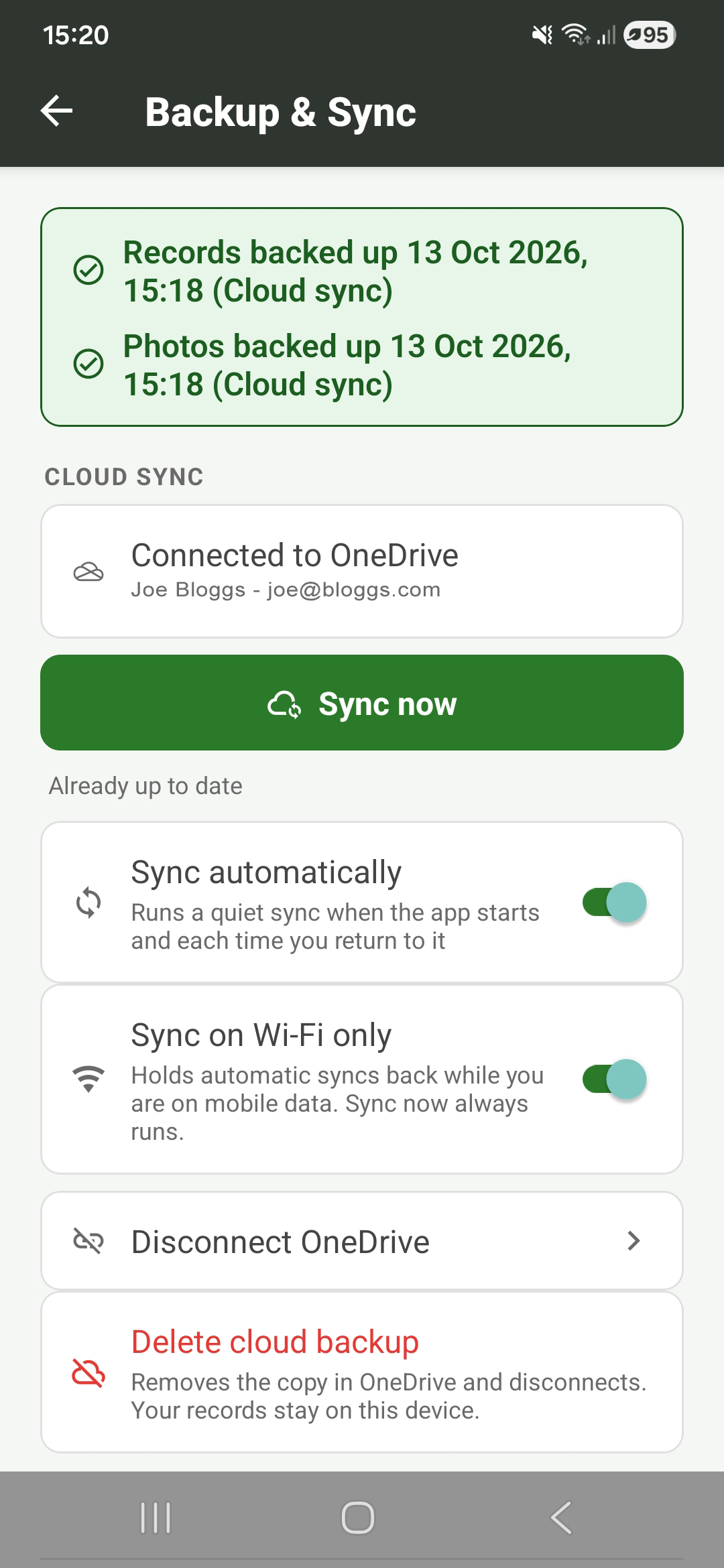
Snapshots on the desktop
The desktop app can also take an exact copy of the database and the photo folder, as the files themselves rather than a bundle. Restoring one is a full, validated replace followed by a reload. It's the belt-and-braces option for before you do something drastic.
Spreadsheets, in and out
Sometimes the collection needs to go into a spreadsheet, for an insurance list, a sale or a count for the club. Sometimes it's coming out of one, because that's where you've kept it until now. Both directions work, from two sections of Backup & Sync: Edit in a Spreadsheet for the round trip, and Export for Other Apps for a detailed report and for copying the photo files to a folder.
- Export to edit
- Any of the seven kinds below, in the template's own columns, ready to edit and import back
- Export as a report
- Trees and pots, one CSV each: every fixed column, every custom field you've defined, and a summary of each record's photos, diary, measurements and open jobs
- Import
- Species, trees, pots, jobs, diary entries, measurements and photos, from seven templates. The spreadsheet guide covers every column
- Columns
- Matched by header name, so the order doesn't matter and neither does the file name
- Prices and values
- Bare numbers, with the collection's currency in the column header
- Blank cells
- Leave the field as it is; an import never clears anything
- Archived records
- Included in the export, with when and why they left
An import is checked in full before anything is written. The app works out, for every row, what it creates, what it updates and what's wrong with it, and shows you the plan. If there's a single problem, nothing gets applied, so you fix the sheet and try again. A tree can name a species that isn't in the catalogue yet, and the species gets created along with it. Several files go in together, so a pots file can pot the trees from a trees file, and a photos file can hang pictures on them, in one import. For photos, the app asks for the folder holding the files once it has read the rows.
The separator follows your device's region, so a sheet exported on a German machine opens in German Excel as columns rather than as everything crammed into column A. An import reads commas, semicolons or tabs alike. The headers, and values like a pot's material, stay in English whatever language the app is in, so a file means the same thing on every device that reads it.
A spreadsheet isn't a backup. It leaves out custom fields and the photo files themselves, and the app doesn't count one as a backup.
Knowing your backup is current
Freshness is tracked on two separate counts, records and photos, because the two are backed up by different actions and a recent bundle tells you nothing about whether this year's photographs are safe. The app will nudge you when either falls behind, on a schedule you set.

A local reset stays local
Clearing all records on one device disconnects cloud sync and doesn't reach out to delete anything you have elsewhere. Deleting the cloud copy works the other way round, resetting what's stored remotely and leaving the device alone. Neither one is a global erase.