Trees and pots
Every tree gets a record holding its species, pot, measurements, photos, diary and jobs. Pots get records of their own, and the two link together.
The gallery
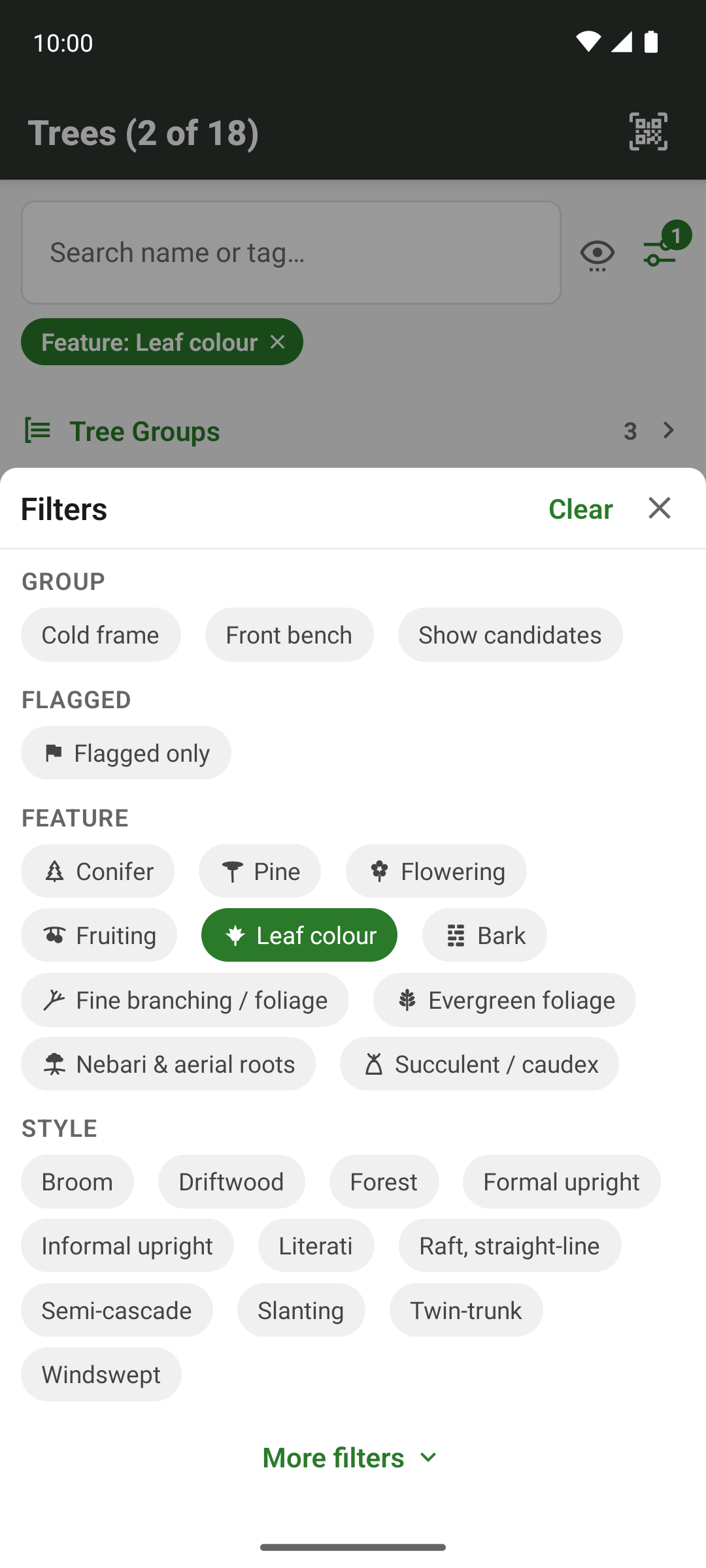
Every tree you own, as a grid of photos with its tag and name. Search by name, tag or species, or open the filter sheet and narrow things down by tree group, species type, training style, size and stage, hardiness and winter status, where it's sheltering, pot or ground, purchase price, value, the year you got it, where it came from, recent activity, or any range you've set up on a custom field of your own.
You choose which details each card shows under its name, from Settings or straight from the list, and the same goes for the pot and species lists. The choice is kept per device, since a phone has room for a line or two and a desktop for more.
Any tree can be flagged, for whatever you like, such as this weekend's work or the trees going up for sale. The gallery filters on it like anything else, and a flag raised on the phone shows up on the desktop too.
Choose how the gallery is sorted (by species, tag, acquisition date or last activity, in either direction) and every list, the label sheet and the printed reports use the same order, so what you print matches what you see on screen.
A tree's own page
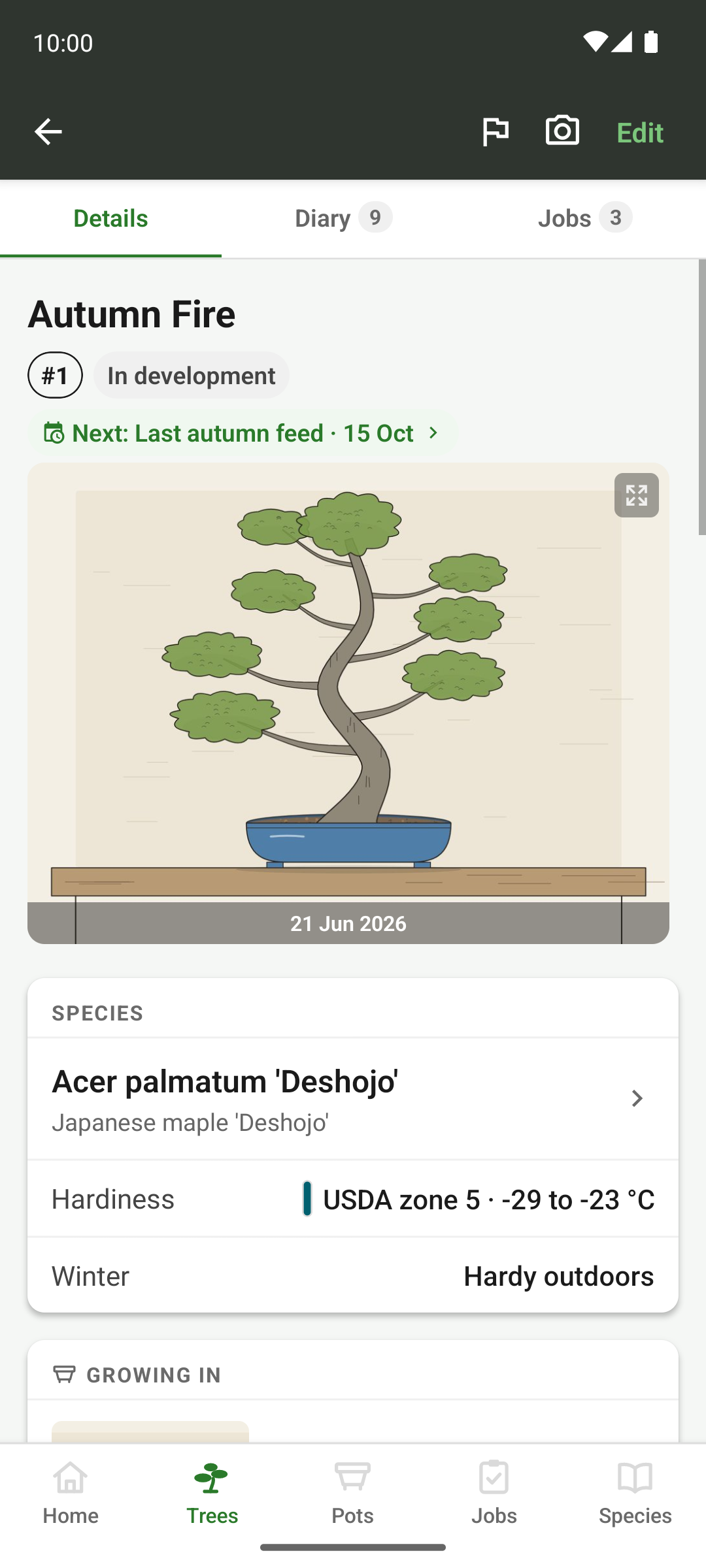
Trees are numbered by tag, and the app fills in the next one for you, so three trees added in a row take the next three numbers. Under the hero photo, the page leads with what the tree needs: its species and winter reading, then what it's growing in, with the pot, where it spends the winter and the mix it was last repotted into. Its tag, style and stage, groups, notes and value follow, and a segmented bar holds the tree's jobs and its diary.
Stage and style are free text, not a fixed list. “Collected” or “Refinement” is as valid as the two stages the app ships with. The picker offers the standard values plus whatever your trees already carry, so a value you coin turns up on your other devices too, and drops out of the list once no tree uses it.
The same goes for where a tree came from: nursery stock, a bonsai vendor, garden grown, wild collected, or your own wording. It's a filter in the gallery, and the tree's profile report prints it beside the date you got it.
A tree is either in a container or planted out in the ground, and you set which yourself. Linking a pot doesn't decide it. For a tree in a nursery pot you'd never bother cataloguing, record the container size instead, and a real pot takes over once you link one.
Trunk and height measurements
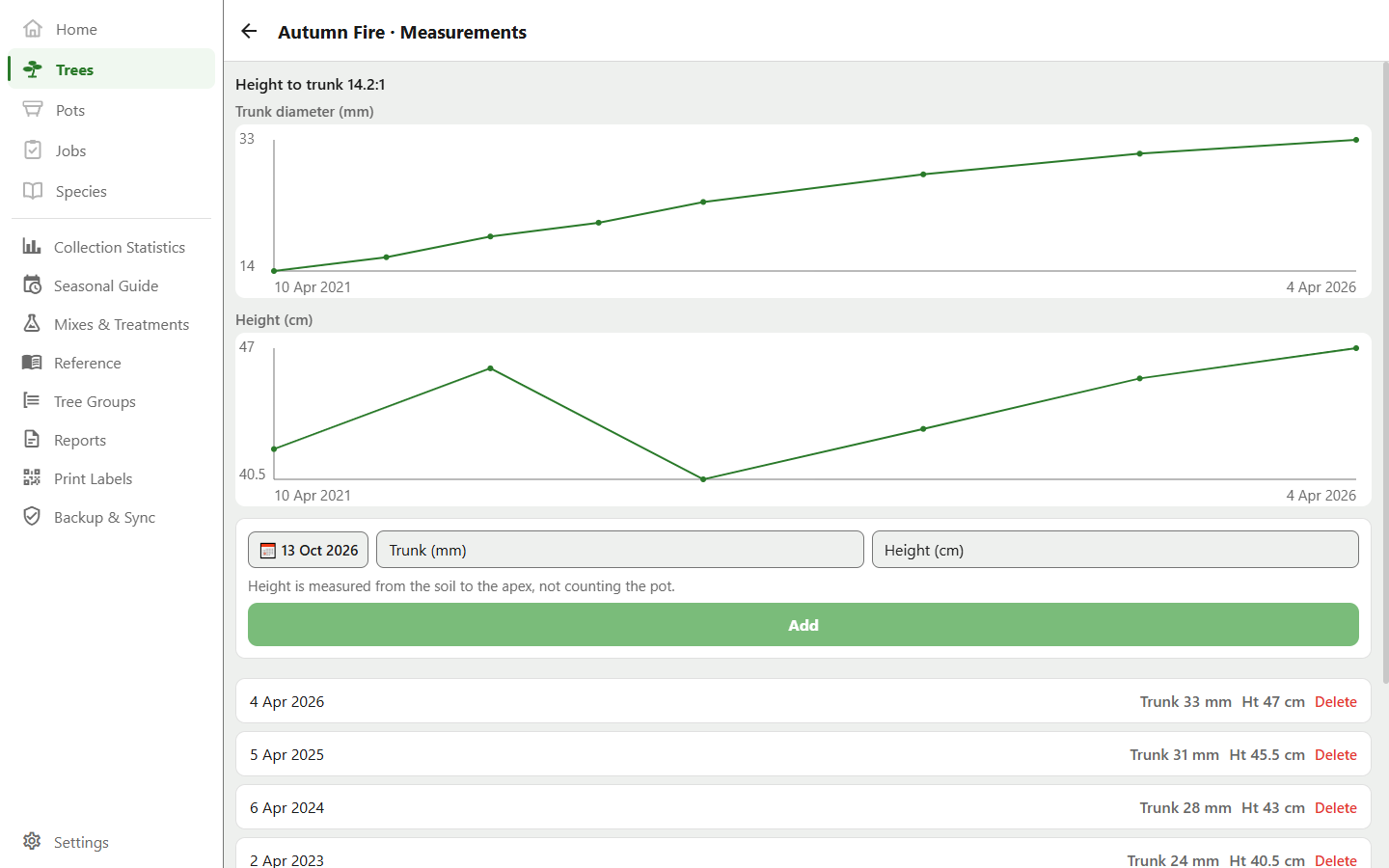
Record the trunk diameter and the tree's height with a date, as often as you like, and the app plots each as a growth chart. The tree's page shows the latest figures, and they open onto a screen of their own with every reading and both charts. A trunk thickens slowly, so the change shows up over years of readings. Height can drop overnight after a chop, and the chart shows that too.
A reading can carry either figure or both, so measuring the trunk in spring and the height after the autumn trim doesn't leave a gap or a zero in either chart. Height is in centimetres, from the soil to the apex, not counting the pot.
- Trunk
- Diameter in millimetres
- Height
- Centimetres, soil to apex
- Per date
- One reading, holding either figure or both
The measurements appear in several other places: the tree's profile report, which prints the latest trunk and the latest height with the date of each and plots both once there are two readings; the spreadsheet export; and the growth highlights on the statistics screen, which name your fastest grower over one, two and five years. The latest height also sits under the size class in the printed inventory, and it's what the pot suggestions below measure against.
Price and value
Every tree and every pot has a purchase price and a current value, with the date you put the value on it. Change the value and the date moves to today unless you pick another. Both figures are in one currency for the whole collection, set on the collection's page and defaulted from your device, so totals simply add up. Changing the currency relabels the figures and converts nothing.
- On each tree and pot
- Purchase price, current value, and the date of the value
- Currency
- One for the whole collection
- Filtering
- Either figure, in three or four bands holding roughly the same number of records each, in both galleries
- Totals
- On the statistics screen, with how many records each total covers
If you've been keeping the price in a custom currency field, the built-in fields do that job now, and they're the ones the valuation schedule, the statistics and the spreadsheet export read.
Tree groups
A group is a named selection of trees, such as the shohin shelf, the trees going to the club show, or everything on the south bench. Groups are a filter in the gallery, a choice when you copy a job so the whole group gets it in one step, and a chip on each member's page that walks you through the rest of the group.
A tree can sit in as many groups as you like, and making or changing a group doesn't touch the trees in it. An archived tree stays in its groups for the record, but a job copied to the group passes it by.
Pots
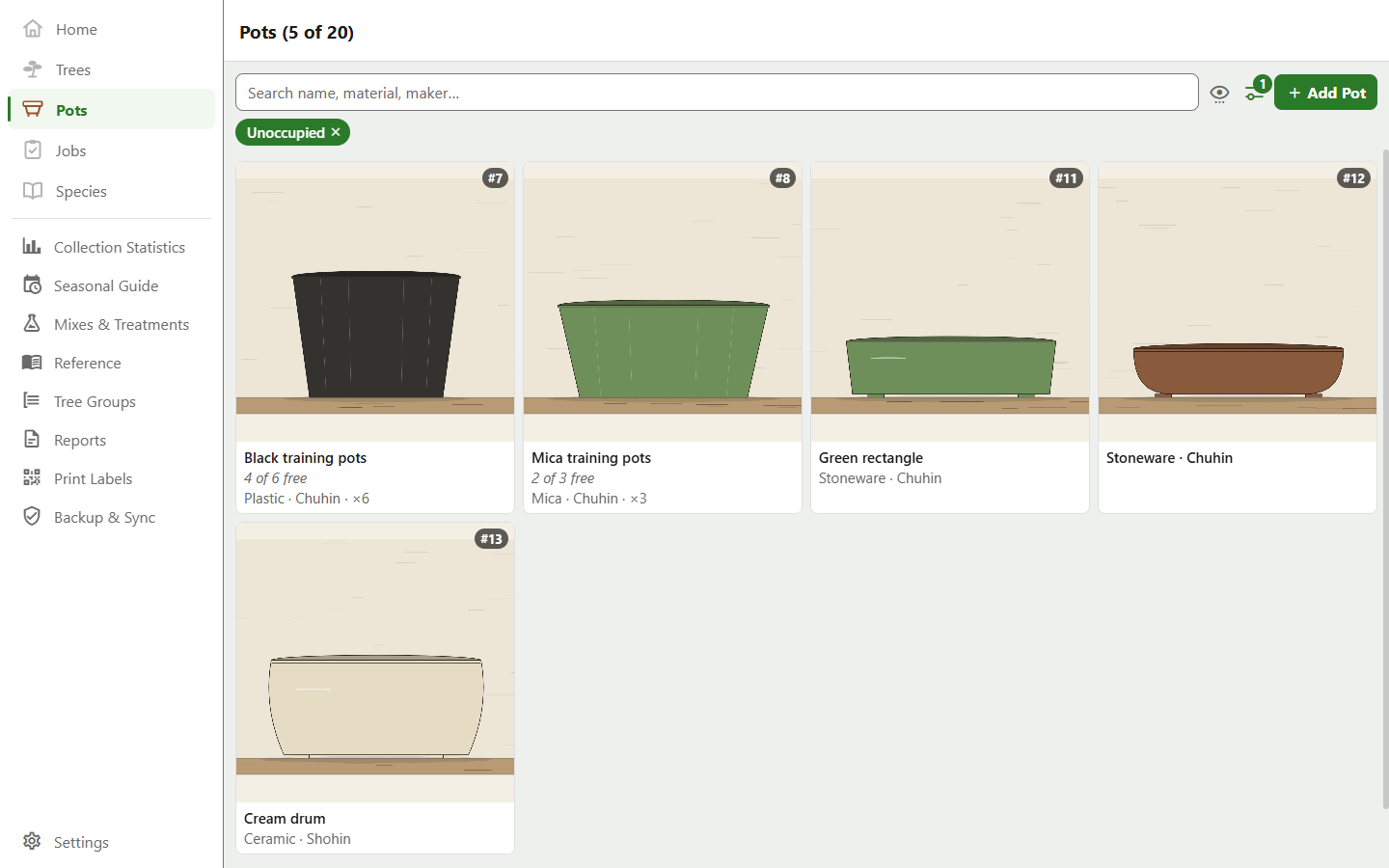
Pots get their own gallery, their own photos and their own record: material, shape, colour, texture, maker, condition, glaze, and its length, width and depth. Filter by any of those, by the year you acquired it, by price or value, or by whether a pot is occupied, to find a free one when a tree comes out of its pot.
From a pot's measurements the app works out a length bucket and a depth class for the filter sheet, offering only the sizes your own collection has. The longest side also suggests which size of tree the pot suits, and a tree you link to the pot is offered that size class in turn. Either suggestion is one tap to accept.
Material, shape, colour and the pot's other choices work like a tree's stage: the picker offers the standard values plus whatever your pots already carry.
Identical pots don't need a record each. A stack of training pots or mica pots can be one record with a quantity, holding as many trees as there are pots. A set with a pot free counts as unoccupied, and its price and value are per pot, so the totals count it by the piece.
Pot a tree from the tree's page or the pot's, and both show it. Each tree also keeps a list of the pots it has been in and when it moved, which the tree profile report prints. Delete a tree and its pot is kept and freed up. Delete a pot and its trees are kept, just no longer potted.
Which pot next
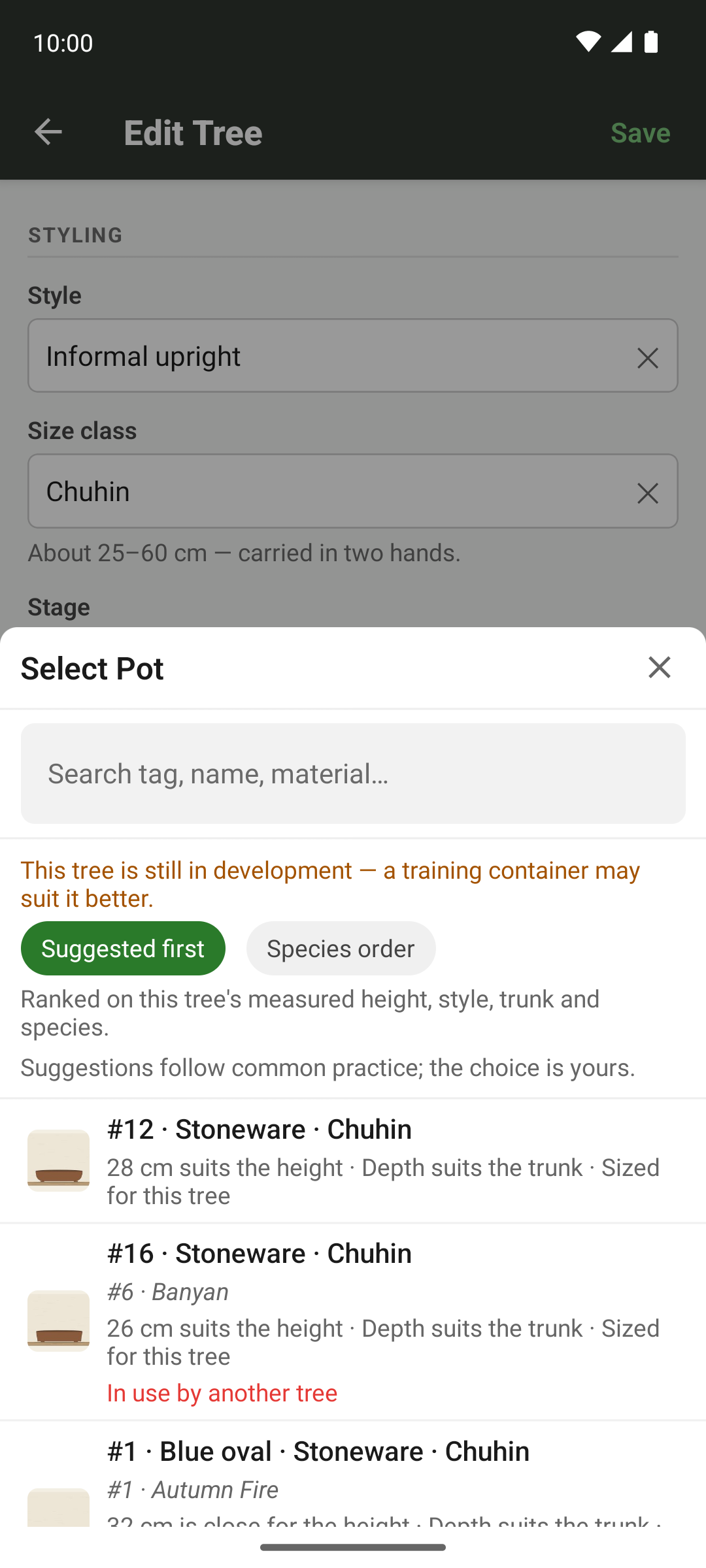
When you pick a pot for a tree, the app ranks your own pots against it. It looks for a longest side that fits the tree's height and a depth measured against its trunk diameter, then the training style's convention for shape and proportion, and a finish that suits the kind of tree. Only the two measurements can rule a pot out. Shape, glaze and colour only change the order, so a rectangle recommended for a formal upright doesn't hide the oval you own. Each pot says why it's there, such as “Depth suits the trunk” or “In use by another tree”.
The height it works from is the one you measured, when there is one. Without a measurement it estimates the height from the tree's size class, capped by what its trunk suggests. A tree still in development whose height is more than a year old goes back to the estimate, because growth or a chop will have changed it. Measure it again and the ranking picks the new figure up.
The picker opens with the suggestions first whenever there's anything to rank on, and one tap puts your usual list order back. The bar says what the ranking was based on, and what to add to sharpen it. Archived pots are never offered, and nothing the ranking works out is stored.
When a tree or pot leaves
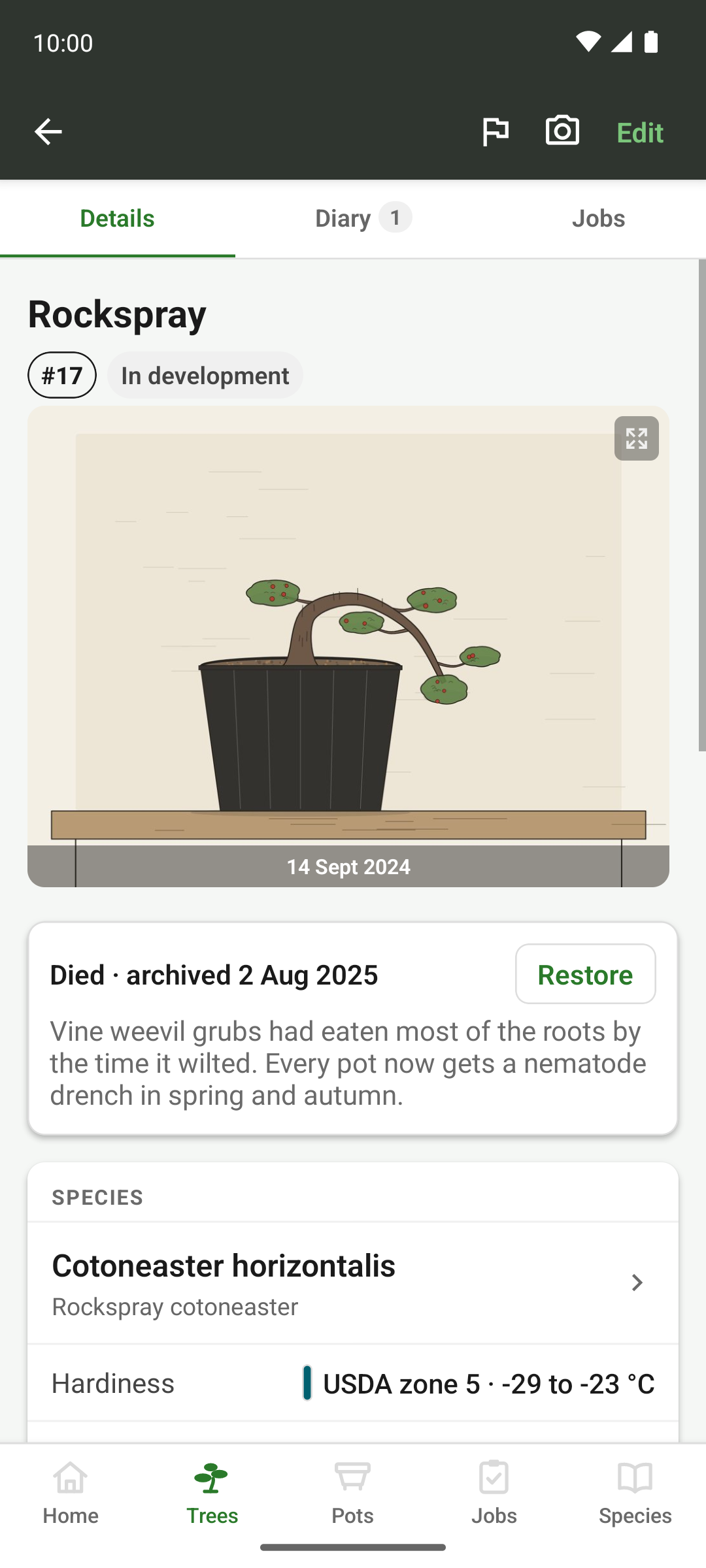
A tree that dies, is sold or given away, or a pot that breaks, doesn't need deleting. Archive it instead, recording when and why, with a note if you want one. The tree keeps its photos, diary and history, and its open jobs get cancelled. Archived records drop out of the gallery by default, with a filter to bring them back.
A tree's pot can go with it or stay in the collection. The app sets a default from the reason you gave (sold usually means the pot went too, died usually means it didn't), and you can change it. If the tree came from a set, the set goes down by one pot rather than the whole set leaving. Archiving a pot never archives the trees standing in it.
Fields you define yourself
The built-in fields won't cover everything you want to record, so trees, pots, species and the collection itself all take custom fields of your own. Define one once and it shows up on every record of that type.
- Types
- Text, number, currency, date
- Input
- Free entry, or a fixed list of options you set
- Searchable
- Per field: a searchable field is matched by the gallery's search box
- Summary display
- Per field: shown on the record's summary as well as in its detail
- Filtering
- Numeric and currency fields become range buckets in the filter sheet
Whether it's a show award, the collection date or the shelf a tree lives on, you can search and filter on it just the same as the fields that ship with the app.
Winter readings
Set your USDA hardiness zone once and every tree whose species has a zone reads as hardy, needing protection, or needing to come indoors. Only the two states that need action get a badge.
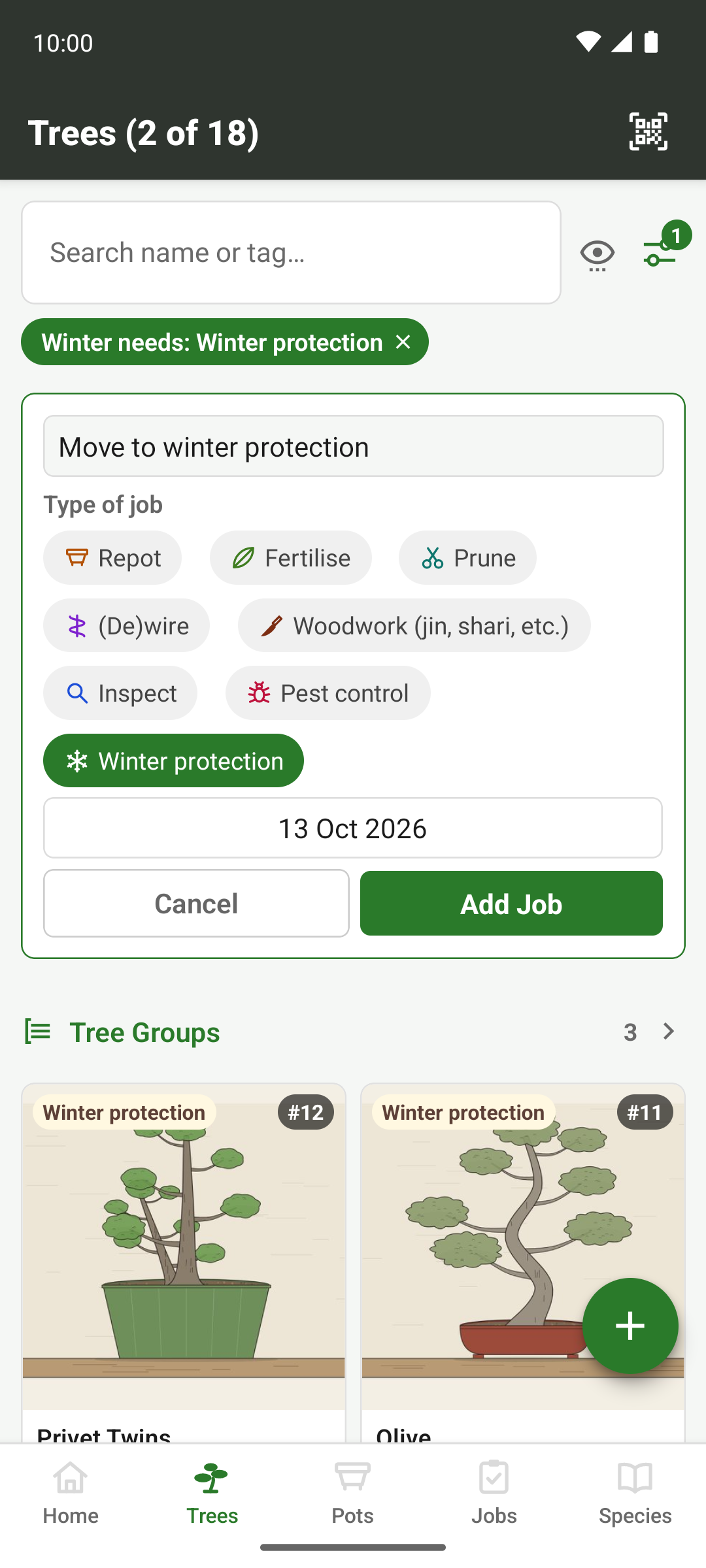
Species carry the standard in-ground zone, and the two-zone penalty for a tree in a container gets applied when the reading is taken rather than baked into the catalogue, so the stored figure still matches what a nursery label says. A tree you've planted out in the ground reads without the penalty. The gallery's winter filter doubles as a to-do list. Filter to the trees that need protection and give all of them the same job in one step.
Where a tree winters, and frost warnings
Each tree records where it spends the winter: in the open, under cover (a cold frame, an unheated greenhouse, fleece) or somewhere frost-free, dated from when it went in. That's separate from the winter reading, which says what the tree needs. The shelter says whether it's getting it.
Turn on frost warnings in Settings and pick your town, and the app reads the coming night's forecast. If the low puts trees at risk, it names them, split into those cover would save and those that need to come in, and can mark the first group as under cover in one step. Trees already sheltered enough are left off, and the warning says how many, so you can check they're still where you put them. Temperatures show in °F where your region uses it.
Once the frosts are over, Home names any trees still marked as sheltered, so a shelter left on from last winter can't quietly keep next winter's warnings off them. Move them back to the open in one tap, or say they're staying where they are.
- Off by default
- Nothing is fetched until you turn it on and pick a town
- What's sent
- The town's name to GeoNames while you search for it, and its position, rounded to about a kilometre, to MET Norway for the forecast. No tree, species or anything about you
- When it checks
- When the app opens, and every hour while it stays open
Through the year
The seasonal guide is what you'd want to be doing about now, read from where you grow: your country for the timing of the seasons, its climate zone for the heat and the rain, and your hardiness zone for the cold. It runs on eight half-season slots across the year, on a temperate calendar or a tropical one.
It works the same in either hemisphere, because it never names a month. “Early spring” arrives in March in Kent and in September in Otago. If the season runs early or late where you are, nudge it and the guide follows. The guide is for reference only. It creates no jobs and writes nothing to your collection.
The seasonal guide never asks for anything more precise than a country. There's no address, no postcode and no location permission behind any of this. The one exception is the frost warnings above: they need a town, which you pick from a search, and it stays on that device.
Working outside
Garden mode strips the interface back to what you can operate one-handed with cold fingers: oversized targets, haptic feedback, a tag-filtered grid of trees, and everything overdue or due soon on one screen with one-tap completion. Switch it on from the foot of the jobs card on Home. It stays on across restarts, so the app's still in garden mode when you come back out after lunch.
Garden mode is on the phone and tablet app. The desktop app, with its keyboard, mouse and large screen, doesn't need it.
What the collection adds up to
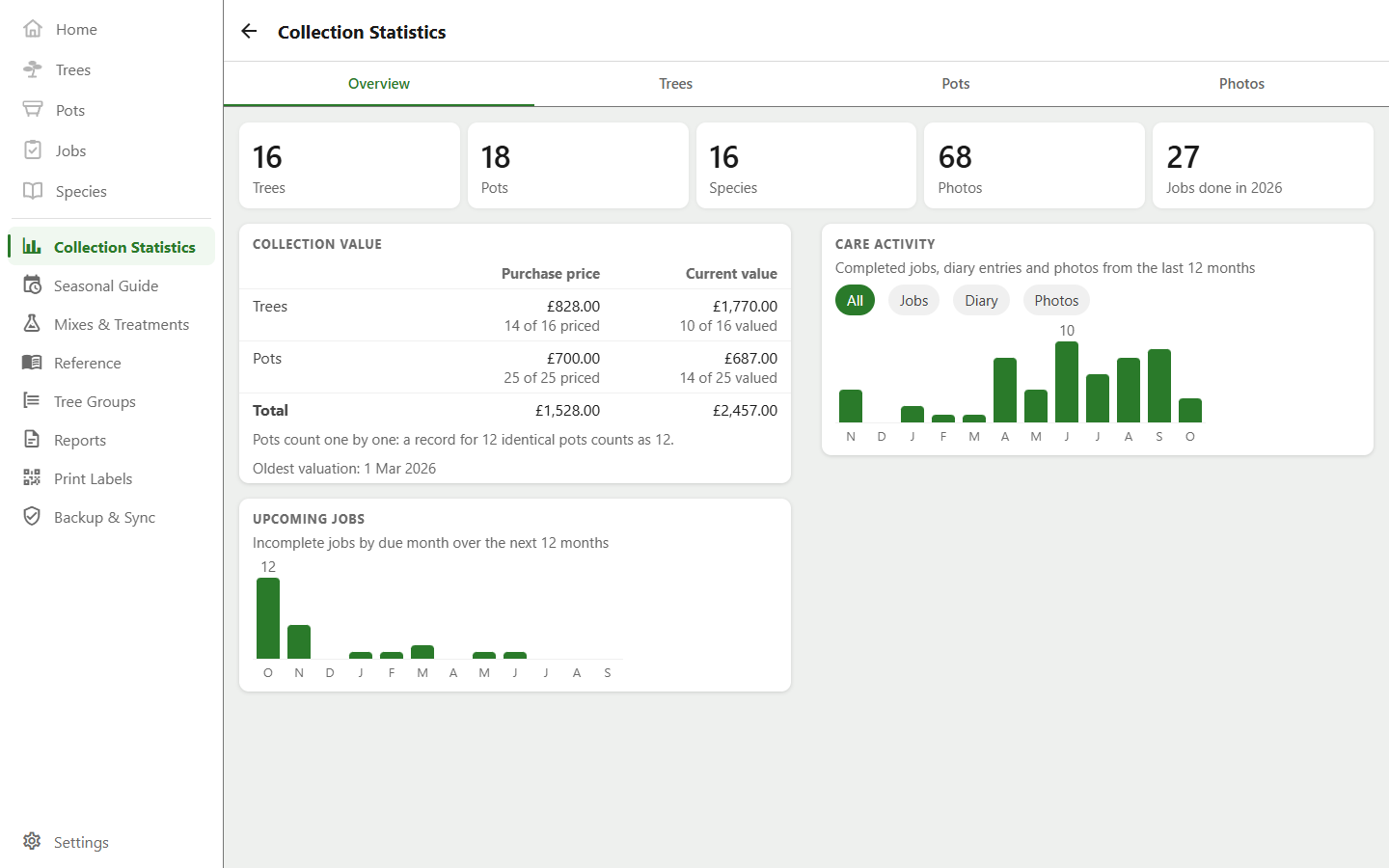
The statistics screen shows summary tiles, breakdowns by species, style, stage and hardiness (and by where the trees came from, once one has a source recorded), how many trees and pots you've archived, a twelve-month care-activity chart you can switch between jobs, diary entries and photos, photo counts by year and month, and the growth highlights from your trunk measurements.
It also shows what the trees and pots still in the collection cost and are worth. Each total says how many records it covers, and the oldest valuation behind it, so a figure resting on half the collection or on a value set five years ago says so.